Shopify · Crawler access
Step by step: grant our crawler access to your Shopify store
By Ryan Johns · GEO Auditor · Published · Updated
About 5 minutes. Once done, our crawler carries your authorisation and Shopify stops blocking it as an unknown bot (429/403). The signature only reads public pages shoppers can see — no admin access.
Before you start
- A Shopify owner account (or staff with Online Store permission).
- Your live store domain, with or without www exactly as shoppers use it.
- A GEO Audit Sentinel member account to paste and save the signature.
Steps: enable Shopify crawler access in 6 steps
- 1
Step 1: Log in to your Shopify admin as the store owner
- Open admin.shopify.com and sign in with the owner account (or a staff account that can manage the Online Store).
- 2
Step 2: Go to Online Store → Preferences
- In the left menu, open Online Store under Sales channels (① in the picture).
- Click Preferences underneath it (②).
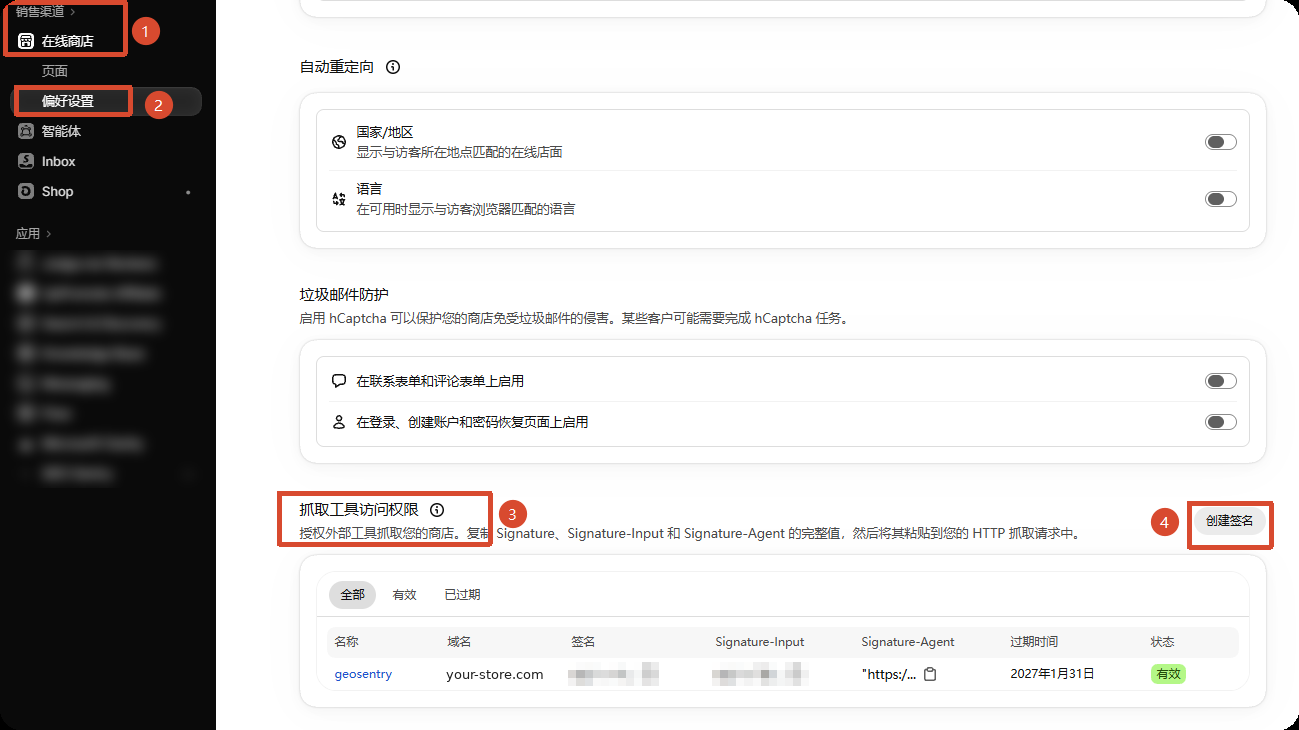
Example screenshot; domain and signature values are masked. - 3
Step 3: Find Crawler access and click Create signature
- Scroll down to the crawler access section (③).
- Click the Create signature button on the right (④).
- 4
Step 4: Fill in name, domain and expiry
- Name: geosentry (so you can recognise it later).
- Domain: the public address shoppers use, e.g. your-store.com. It must match the browser address bar exactly — with www only if your site uses www. Do not use xxx.myshopify.com.
- Expiry: choose the longest option so you rarely need to redo this.
- Save. A new row marked Active means it worked.
- 5
Step 5: Open the signature and copy three values
- Click geosentry in the list to open the signature fields window.
- Use the copy button next to each item to copy: Signature, Signature-Input and Signature-Agent.
- Always use the copy buttons — one missing character or quote breaks it. Signature-Agent reads "https://shopify.com" and the double quotes must stay.
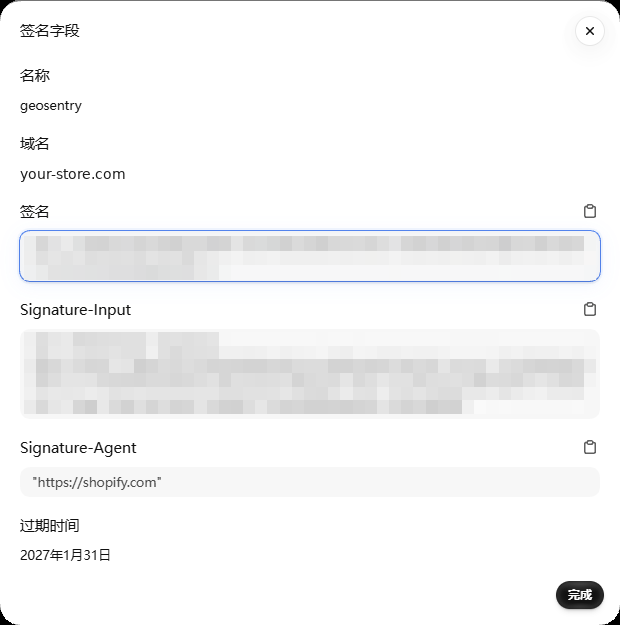
Example screenshot; domain and signature values are masked. - 6
Step 6: Paste into GEO Audit Sentinel and save
- Sign in to GEO Audit Sentinel, find Store crawl authorisation in your member center and click Bind a store.
- At the top of the page, open the Shopify crawler signature form under Store authorisation.
- Enter exactly the same domain as in step 4, paste the three values into their boxes and click Save.
- When you see “Saved: your domain, expires …” you are done. Our crawler will carry your authorisation from now on.
Ready? Sign in and bind your store.
Bind a storeFAQ: Shopify crawler access binding
Does this give you access to my admin?
No. It only tells Shopify the crawler is allowed by you. We can only read public pages shoppers can see — never orders, customers or payments.
Does www matter?
Yes. your-store.com and www.your-store.com count as two domains. If both are in use, create and bind one signature for each.
What happens when it expires?
We remind you before it expires. Repeat steps 3–6 and save the new values; expired signatures are switched off automatically.
I shared the signature by mistake — now what?
Delete that signature in the same Shopify section and it stops working immediately, then create a new one. Never post signatures in chats or screenshots.
What if I don't bind?
Audits still run, but Shopify may block our crawler (429/403). Some pages then have to be read as plain text through a third-party service, losing page structure, so results are less complete.
Stuck on a step? Contact us: